Dynamic Wallpapers in Hyprland
11/11/2025
Quick post because exam revision is mind numbing and makes me want to lobotomise myself.
On systems like macOS, wallpapers can be made "dynamic". That is, the wallpaper's appearance changes over time gradually fading light to dark mode alongside the day.
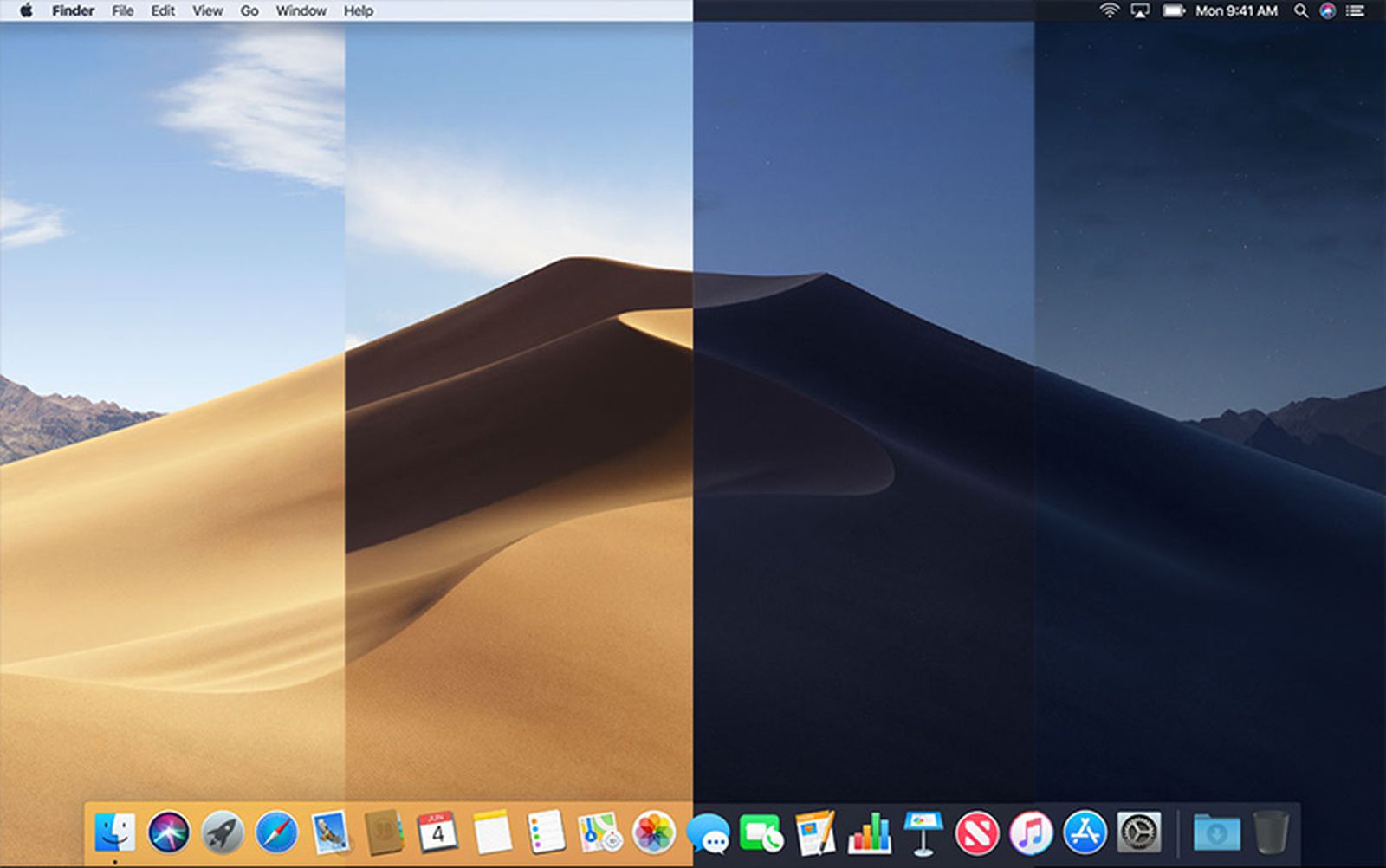
With some quick scripting, I replicated this effect to some degree on Hyprland. While you will not get the incredibly subtle changes found on macOS' implementation, you will get a wallpaper that can change appearance at certain times of the day. For me, I've kept it simple with a daytime wallpaper that runs until 9pm before switching to night, signifying it's time for me to stop working.
Setup
Setup was incredibly simple if not a little crude.
You'll, of course, need to select multiple wallpapers to switch between. For the longest time I've used the works of background artist Arsenixc. Beyond static backgrounds, they also draw day, sunset and night versions of various scenes making them perfect.
In my configuration, I placed my photos under ~/.config/hypr/wallpapers
Script + Systemd
I cobbled together this bash script to run hyprpaper based on the time, placing it in ~/.local/bin. Make sure to make it executable with chmod +x.
#!/bin/bash

while ! pidof "hyprpaper" > /dev/null; do
  sleep 1
done

sleep 1
hour=$(date +%-H)

# change to whatever time you want
if [[ $hour -ge 21 || $hour -lt 6 ]]; then
  hyprctl hyprpaper wallpaper,"~/.config/hypr/wallpapers/island_night.jpg"
elif [[ $hour -ge 6 ]]; then
  hyprctl hyprpaper wallpaper,"~/.config/hypr/wallpapers/island_day.jpg"
fi
If this doesn't work try changing "wallpaper" to "reload".
To achieve the automatic switching, I created a systemd service and timer. The reason I used Systemd over simple Cron jobs is that Systemd timers can be configured to run immediately after startup even if it's original trigger time has elapsed. When I trialed Cron I found that putting my laptop to sleep and waking it at 10pm caused the event to not fire.
This service really only applies to the user so we'll be creating a local Systemd service. If not created already, make the ~/.config/systemd/user folders with mkdir -p.
mkdir -p ~/.config/systemd/userNext we'll create both our service and timer.
[Unit]
Description=Dynamic wallpapers

[Service]
Type=oneshot
ExecStart=/home/%u/.local/bin/wallpaper.sh

[Install]
WantedBy=default.target
[Unit]
Description=Run wallpaper.sh daily at 6am and 9pm
[Timer]
OnCalendar=06:00
OnCalendar=21:00
Persistent=true
Unit=wallpaper.service
[Install]
WantedBy=timers.targetAfterwards, enable our timer to run on startup and for our current session.
systemctl enable --now --user wallpaper.timerOur timer should be enabled currently and on any future sessions. We can confirm this with the systemctl list-timers command.

Now, our timer will allow our wallpaper to change at certain times, however we still need to run the script on startup.
Hyprland + Hyprpaper Configuration
Some small tweaks need to be made to Hyprland and its wallpaper tool hyprpaper. Install it using your package manager.
Using pacman:
sudo pacman -S hyprpaperThen amend your config file to run both hyprpaper and the wallpaper script.
exec-once = hyprpaper
exec-once = ~/.local/bin/wallpaper.sh
Result
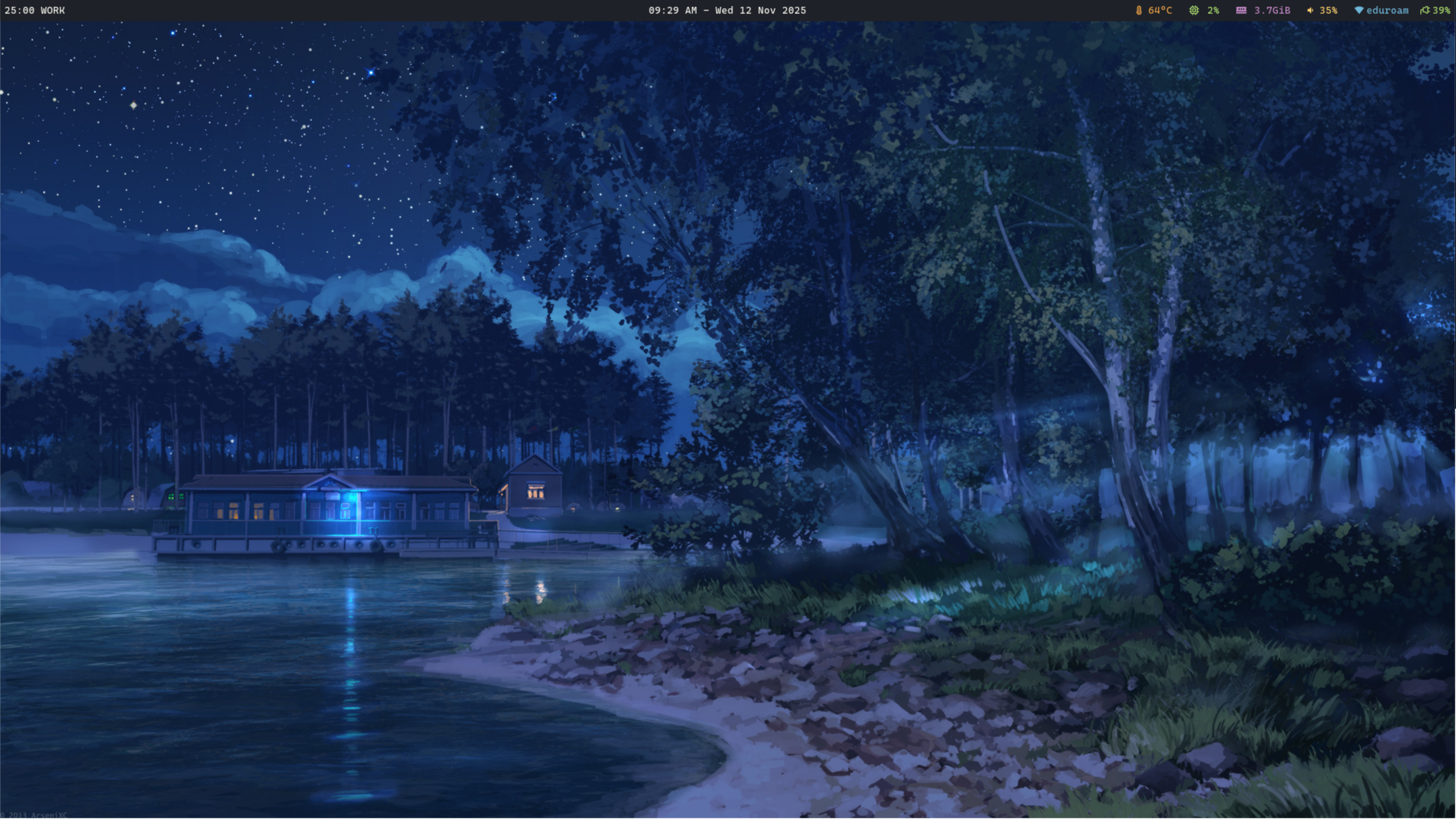
Day:
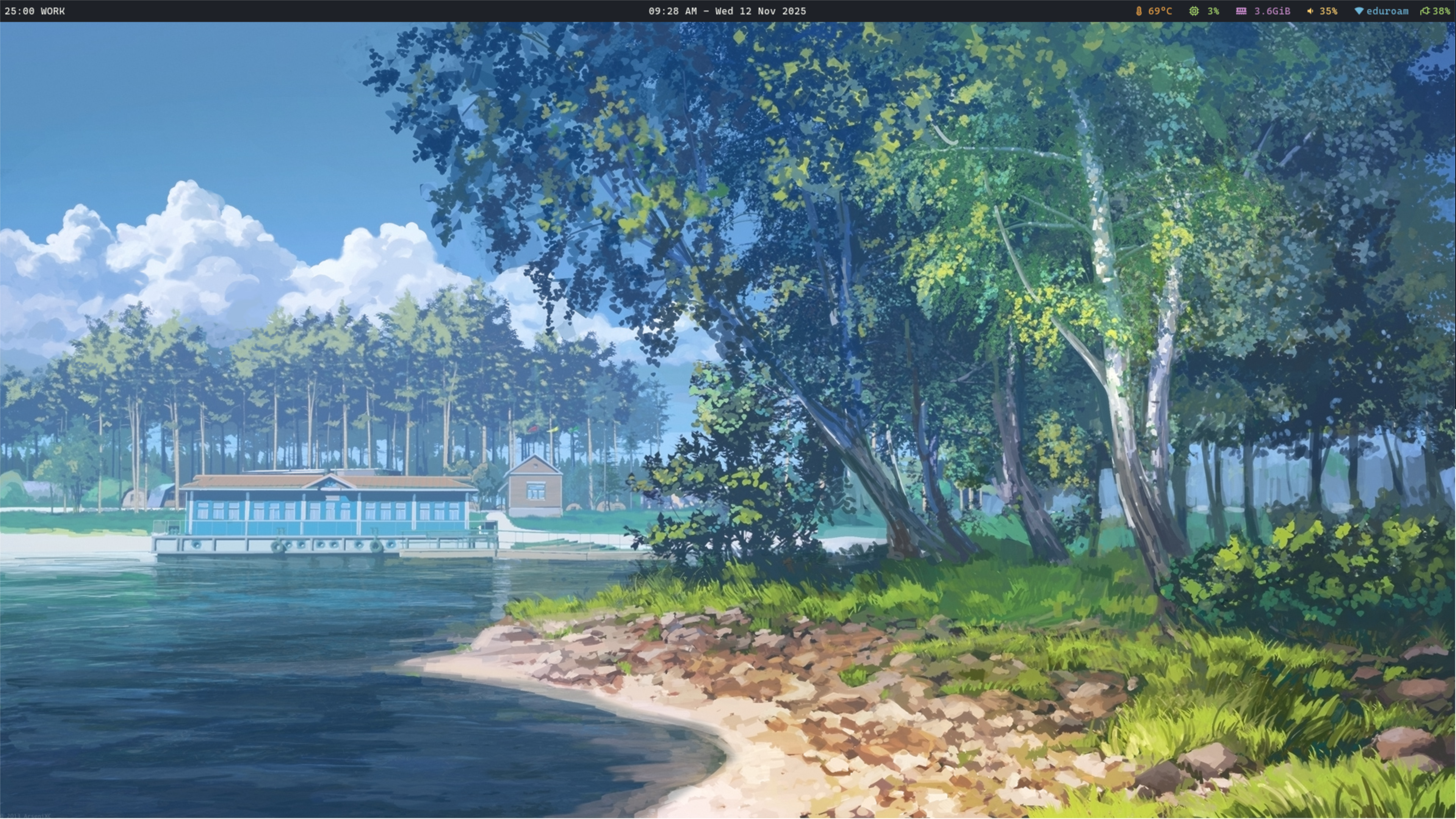
Night (I set it manually):